Overview
Attendance is recorded per class, per session (AM and/or PM), for every school day. Faculty take attendance for their Advisory section and any Subject Classes they teach.
Each absence or late mark can carry a reason and a validation status, so schools can distinguish excused from unexcused cases.
How to Access / Use
1. Before you begin
- You're signed in to the Faculty Portal.
- The class is assigned to you for the current academic year.
- The class shows its expected session schedule (AM only, PM only, or AM + PM).
2. Take today's attendance
- On the Faculty Dashboard, check Today's Attendance and click Take AM/PM Attendance on the class card.
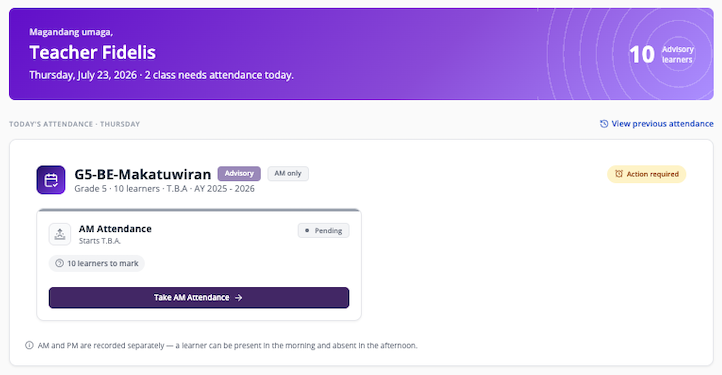
- Mark each learner Present, Late, or Absent. Use Mark all present then fix exceptions, or Show late / absent only to jump to what's left.
- For Late/Absent, optionally add a reason; for Absent, set Validation to Pending, Excused, or Unexcused.
- Click Save draft to keep progress, or Submit AM/PM Attendance to record it.
3. Record attendance for a previous date
- From Take Attendance, select View other dates — or go to Attendance Records and choose your section.
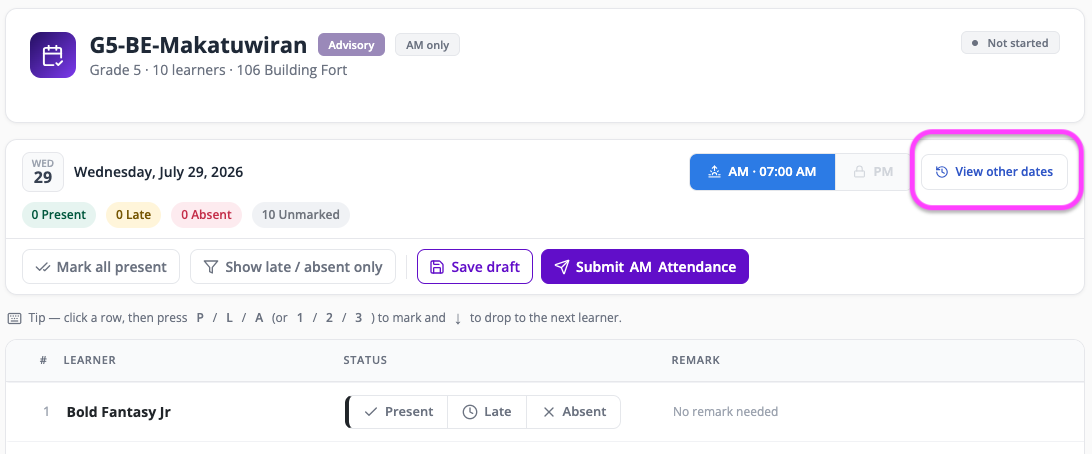
- Navigate to the date you want to record:
- Use Week or Month to change the view.
- Click < or > to move to the previous or next month.
- Click This month to return to the current month.
- To jump to a specific date, click the calendar icon, select the date, then click Go.
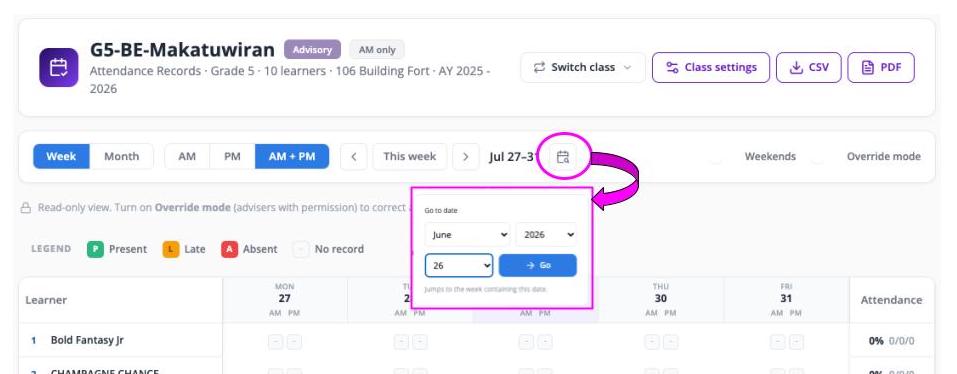
- In Month view, use the bottom slider if the date is outside the visible area.
-
Click the day and date displayed at the top of the column (for example, FRI 26) to open and record attendance for that day.
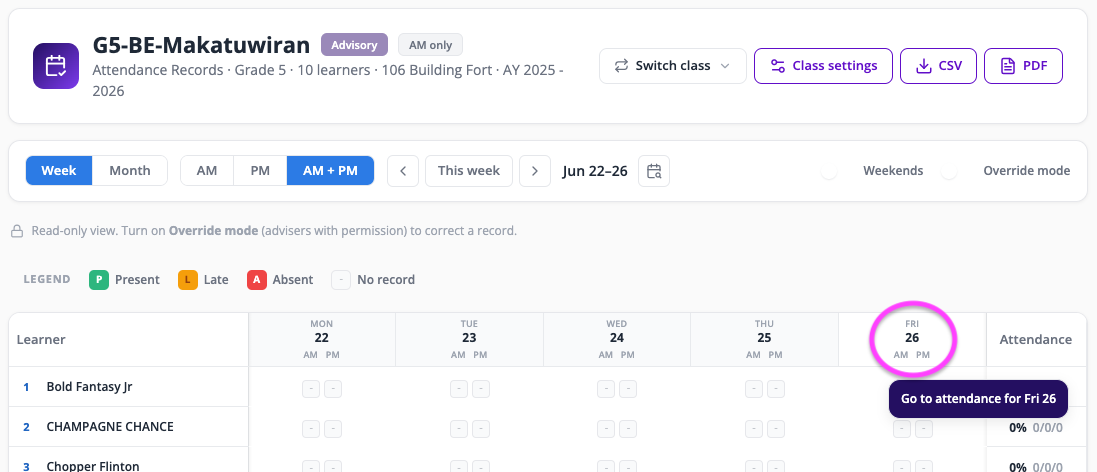
- Record and save the attendance for that day.
4. Review & export attendance records
- From the Dashboard, click Previous Attendance, or open Attendance Records and select a class.
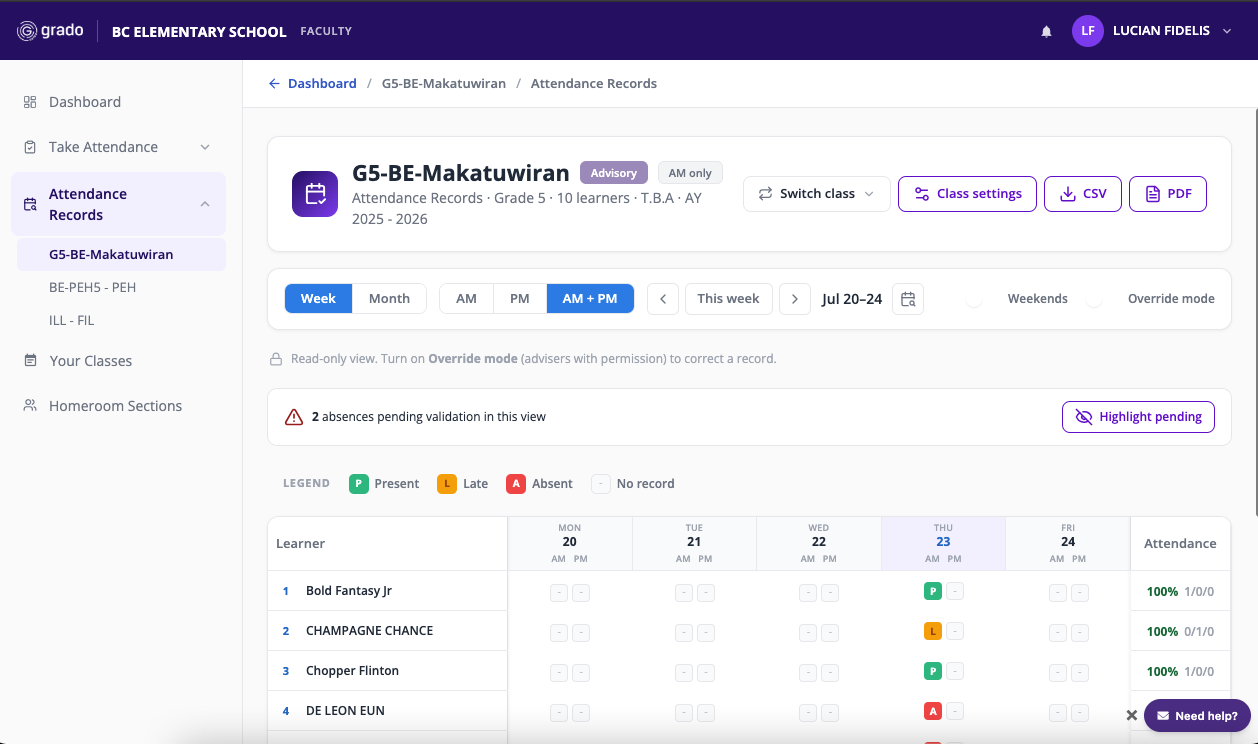
- Switch between Week/Month and AM, PM, or AM + PM. Toggle Weekends if needed.
- Hover any mark for its full detail, or click a date cell to open that day's Attendance Sheet.
- Click CSV or PDF to export the current view.
5. Correct a submitted record
- In Attendance Records, turn on Override mode (only available for classes you're assigned to).
- Select the mark and edit it — the change is written to the audit trail.
6. Set a class's attendance sessions
- In Attendance Records, select the class, then click Class settings.
- Choose AM + PM, AM only, or PM only.
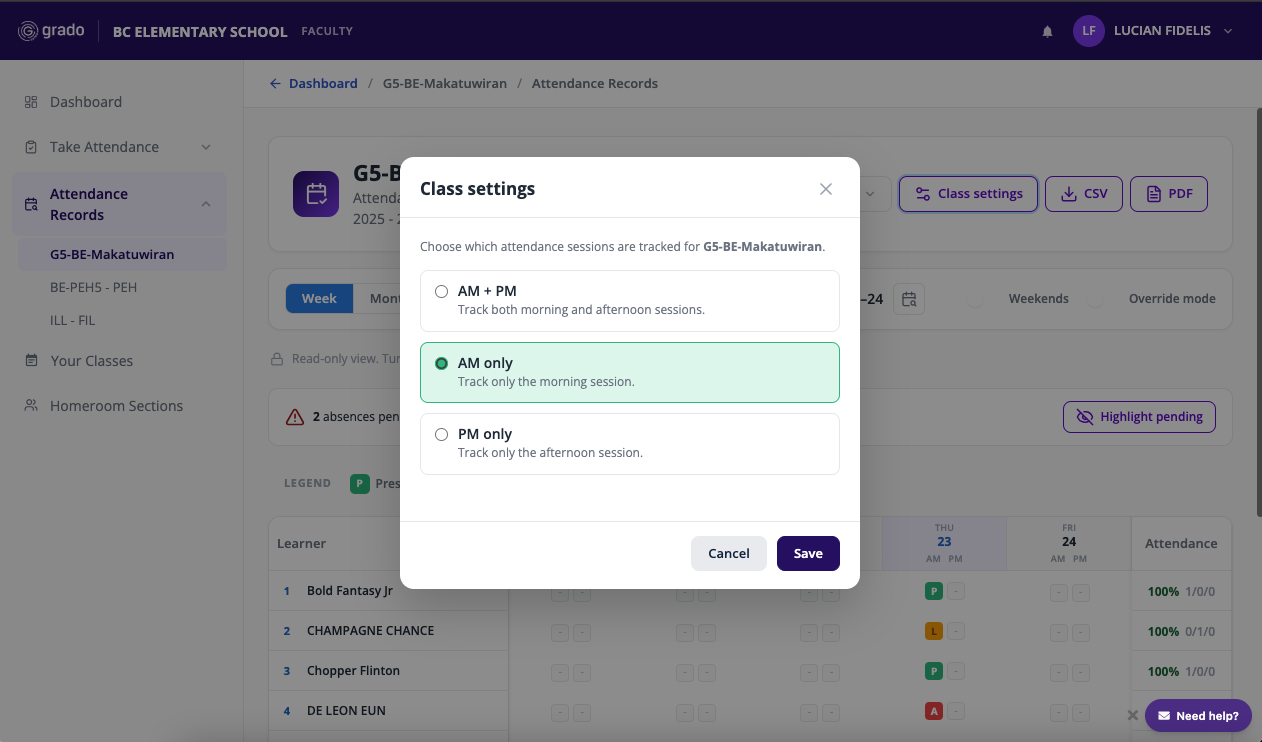
- Click Save.
Good to know
- AM and PM attendance are tracked separately — a learner can be Present in the morning and Absent in the afternoon.
- An Absent mark defaults to Pending until you set Excused or Unexcused; pending absences stay flagged in Attendance Records.
- Save draft keeps progress without finalizing — nothing is recorded until you submit.
- Editing a submitted record always requires Override mode, and only for classes you're assigned to.
Summary
Take attendance daily for each session, mark exceptions with a reason, and follow up on Pending absences. Correcting a past record requires Override mode.